

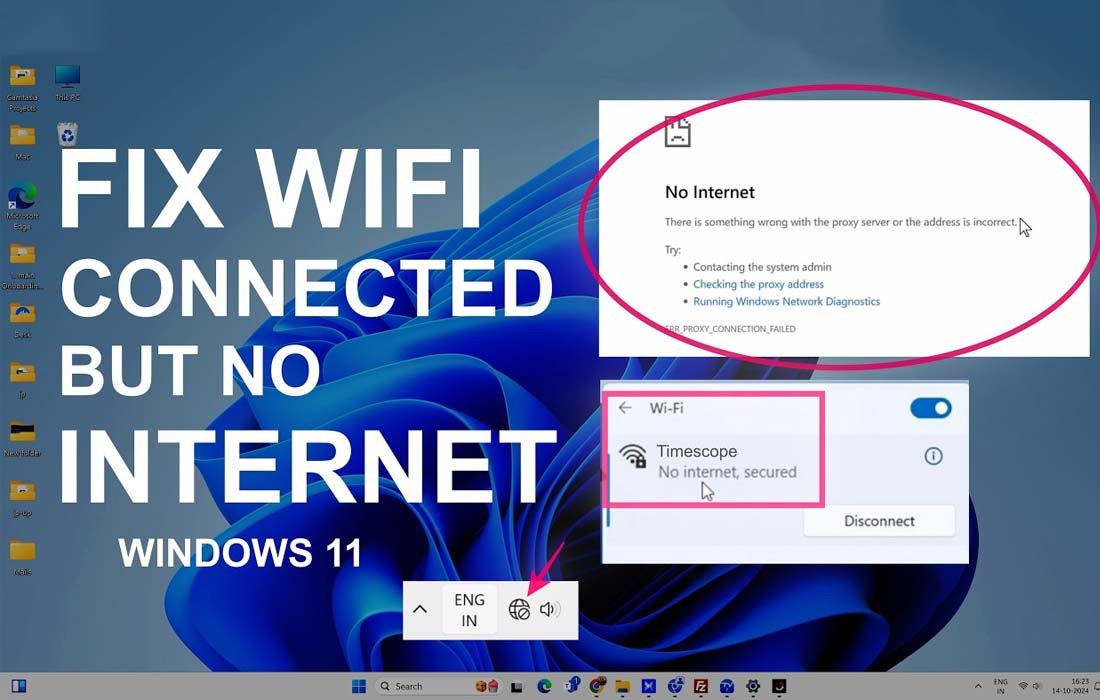
Are you experiencing the “Wi-Fi connected but no internet” issue on your device? We know how frustrating this can be! Incorrect DNS settings, network difficulties, or an ISP’s failure to provide a stable connection frequently cause this problem. In this guide, we’ve compiled a list of causes and practical troubleshooting approaches. Following these steps carefully will allow you to swiftly resolve the issue, avoid unwanted mistakes, and keep your Wi-Fi connection stable and trustworthy.
What Does “Wi-Fi Connected But No Internet” Mean?
“Wi-Fi connected but no internet” indicates that your device has successfully connected to the Wi-Fi network, but that network does not provide access to the internet. In this case, your phone or computer displays a Wi-Fi connection, but websites, apps, or online services fail to load because the internet connection is not functional.
Common Causes of Wi-Fi Connected but No Internet
The first stage in the troubleshooting process is identifying the root cause of the problem. When you identify the main cause, it is easier to solve the problem since you can focus just on that area. We’ve compiled a list of frequent causes to help you identify the trigger places in your device.
- Your router is operational; however, the ISP is momentarily unavailable or experiencing technical difficulties.
- Hardware issues, overheating, or obsolete firmware can all hinder the router or modem from connecting to the internet.
- The WAN/Ethernet connection connecting the modem and router could be unplugged or defective.
- Even when Wi-Fi is enabled, your smartphone is unable to browse websites due to incorrect or inaccessible DNS servers.
- Your device may fail to receive a valid IP address from the router, preventing internet connection.
- Bugs in outdated firmware might impede internet connectivity while Wi-Fi is operational.
- Another typical cause could be an excessive number of linked devices or data, which limits internet access.
Early Warning Signs of Wi-Fi Problems That Are Often Neglected
Many users ignore brief internet dropouts because the Wi-Fi reconnects automatically. However, if the ISP connection becomes unstable (many short disconnections, signal drops, or packet loss), the router may continue to broadcast Wi-Fi while failing to maintain a steady internet connection. Over time, this causes the “Wi-Fi connected but no internet issue.”
- Users encounter a delay in website loading before the network fully disconnects them.
- The internet sometimes goes down for a limited period of time, particularly during specific times of day.
- Apps may say “retry” but work within a few seconds.
- Users regularly have to toggle Wi-Fi off and on.
Methods to Resolve the Wi-Fi Connected But No Internet Issue
Now that you’ve identified the core causes of the problem, optimize the procedures below to effectively resolve the “Wi-Fi connected but no internet” issue. Each method is given step-by-step direction to ensure comprehension. Carefully follow the directions to avoid problems and ensure a smooth troubleshooting process.
Method 1: Restart the Router and Modem
Restarting the router and modem is the simplest and most successful way to resolve temporary network issues. Over time, network devices may acquire cache errors or lose a reliable connection to their ISP. A proper restart refreshes the connection, reassigns network settings, and frequently restores internet access without requiring technical knowledge.
- Turn off the router and modem.
- Unplug both devices from their power sources.
- Wait 30 to 60 seconds.
- Plug in the modem first and turn it on.
- Turn on the router after the modem has completed its startup process.
- Connect your device to Wi-Fi and check the internet.
Method 2: Check the Internet Service Provider (ISP) Status
Sometimes the problem isn’t with your Wi-Fi or gadget but with your Internet service provider. ISP outages, maintenance, or technical difficulties can prevent internet connectivity while Wi-Fi is active. Checking the ISP status prevents wasteful troubleshooting and reveals whether the problem is external and beyond your control.
- Use mobile data on your phone.
- Go to your ISP’s official website or app.
- Check for outage or maintenance warnings.
- If necessary, contact your Internet service provider’s customer assistance.
- Wait until service is restored.
- Restart your router once service has resumed.
Method 3: Reset the Network Settings on Your Device
Even with Wi-Fi enabled, incorrect network setups, faulty Wi-Fi profiles, or IP conflicts can impede internet access. Resetting network settings deletes all previously saved networks, DNS entries, and adapters, allowing your device to rebuild a clean and reliable connection. This procedure is secure and will not remove personal files.
- Start the process by navigating to your device’s settings.
- Now, move to the Network & Internet settings.
- Here, choose Reset Network settings.
- Confirm the reset action and restart the device.
- Reconnect to the WiFi network and check the internet connection.
Method 4: Change or Reset DNS Settings
DNS servers convert website names to IP addresses. Even if you have a Wi-Fi connection, your DNS server may be slow, unavailable, or misconfigured. Changing DNS settings to a dependable public DNS improves connectivity, speeds up surfing, and corrects typical “no internet” errors caused by DNS problems.
- Open your device’s Network settings.
- Now, select the Wi-Fi network to which you are connected.
- Select Edit IP/DNS settings and set DNS to Manual.
- Enter a public DNS address and save your changes.
- Reconnect and test the connection.
Method 5: Fix Router Issues by Updating Firmware
Outdated firmware or wrong router settings might impede internet access while Wi-Fi remains operational. Updating the firmware resolves issues, improves compatibility, and boosts performance. If the problem persists, a factory reset restores the default settings, erasing damaged configurations that prevent internet connectivity.
- Open a web browser and access the router’s administration panel.
- Navigate to Firmware Updates or System.
- Check for and install any available updates.
- After you have updated the router, restart it.
- If the problem persists, press and hold the Reset button for about 10-15 seconds.
- Reconfigure the router and rejoin the devices.
End note!
In conclusion, the “Wi-Fi connected but no internet” issue can be caused by various circumstances, including ISP outages and router misconfiguration. Understanding the core reasons allows you to immediately identify the problem, whereas the step-by-step method provides realistic ways for restoring internet connectivity. By following these steps and keeping your devices and network settings up to date, you may avoid future disruptions and maintain a stable, reliable Wi-Fi connection for seamless surfing and online activities.
